Anniversaries are a milestone to celebrate with a loved one, your workplace, and even your customers. If a customer had given you a whole year of business, it’s a good idea to acknowledge the relationship and reward them for their loyalty.
In TalkBox, you can set up an automated communication to send every year on the date a customer first visited you.
To create an Anniversary communication, you will need to set up a ‘Date-triggered’ automation. This article will guide you through setting this up.
Step 1: Create a Date-Triggered Communication
Navigation: Automated > Date Triggered > Add New
- Name your communication (only visible to you).
- Select your channels: Email and SMS. We recommend selecting both Email and SMS to ensure you reach 100% of your audience.
- Design your flyer using the drag & drop editor.
- Review & send yourself a ‘Test’ communication.
Refer to this example of an anniversary communication below:
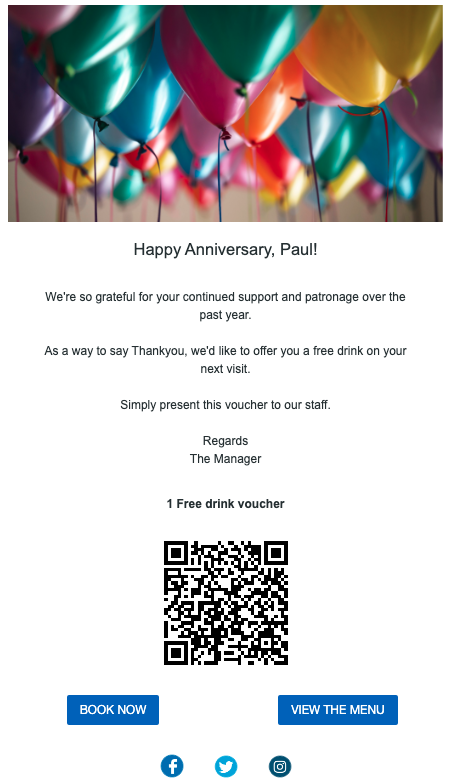
Step 2: Select your recipients
- When selecting your audience, prioritise Email as the primary channel. This ensures SMS is only sent to customers who don’t have an email address and avoids duplicate messages.
- Select ‘All Contacts’
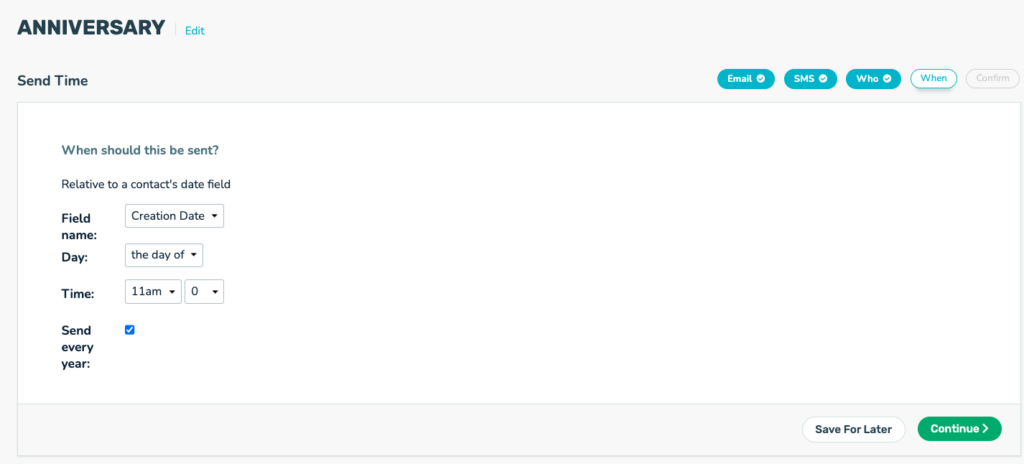
Step 3: Select the Send Time
- Field names: Select ‘Creation date’ OR ‘ First visit date’ from the drop-down
- Set Day: ‘The day of’
- Time: Specify a time that works for your business
- Select: ‘Send every year’