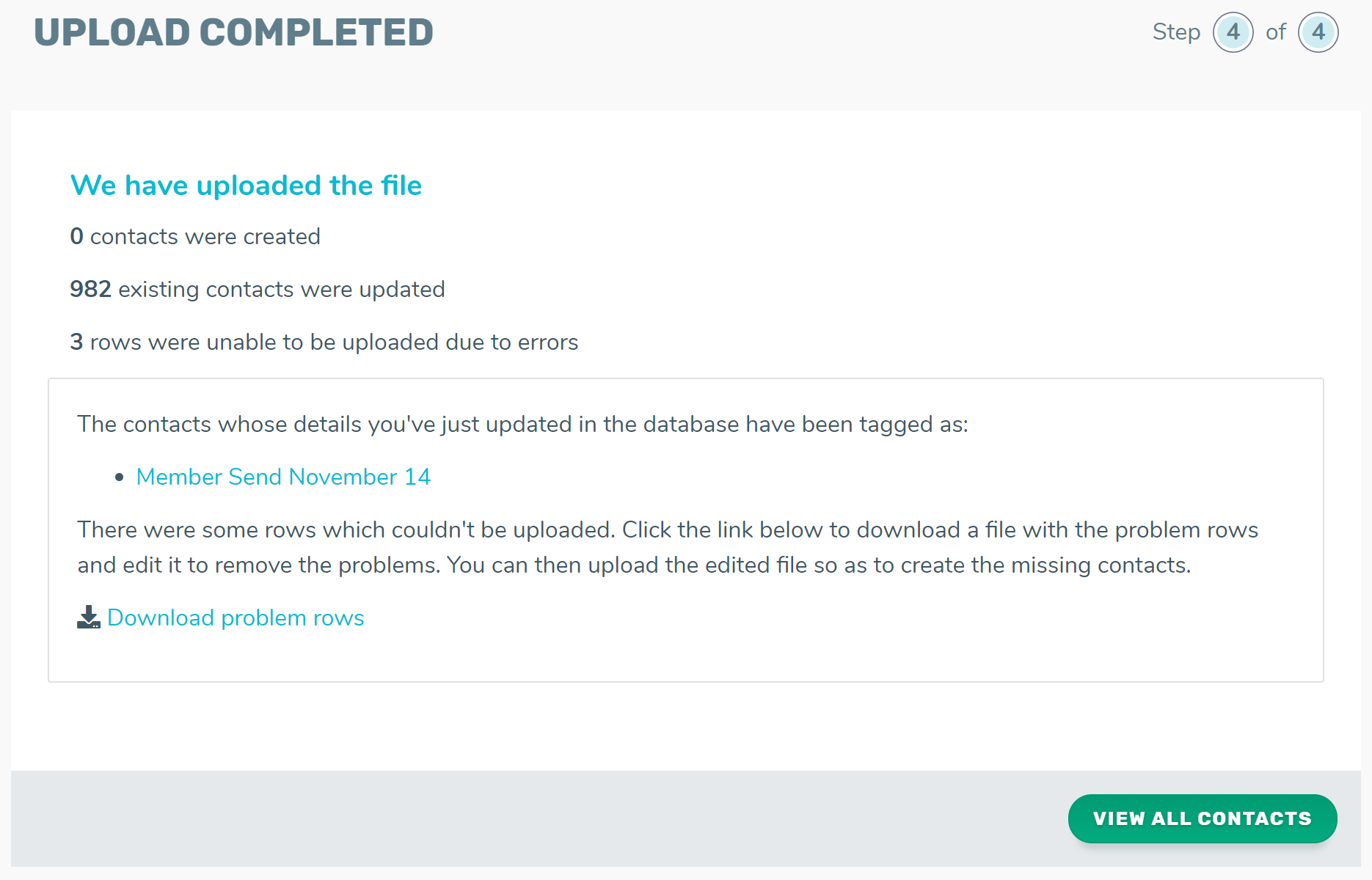
When TalkBox is in mirror mode, the ‘upload contacts’ feature can be used to add existing contacts to Lists and add specific data to these contacts that isn’t usually stored in your TalkBox account. It cannot be used to add new contacts, as contacts in Mirror Mode MUST come from your external system. It also will not update data stored in your mirror fields (fields not editable in TalkBox).
Navigation: Contacts > Upload contacts
Step 1: Export unique IDs from your member system
- Filter contacts in your member system based on your desired criteria (e.g. ‘top 20 EGM players’) and export a list of external IDs for those contacts.
- Save the list in a .csv file in Excel or Google Sheets.
Step 2: Upload contacts & add to a List in TalkBox
- Select the csv file you saved and click ‘upload’.
- Under the list selection, select an existing List to add the contacts to, or create a new List.
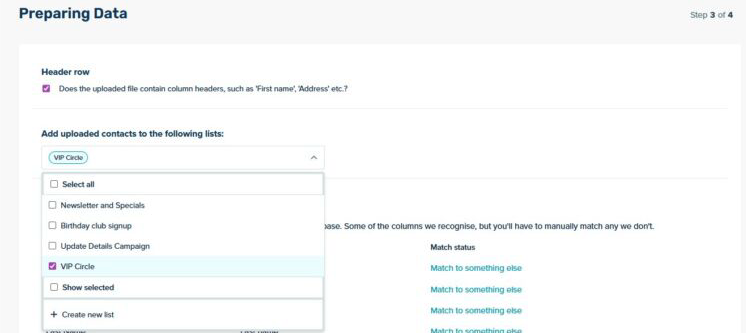
- Match the column in your file to the External ID field in the mapping step.
- Click continue.
Step 3: Complete upload
- Wait for your upload to complete. TalkBox will automatically navigate to the upload complete page.
- If rows were unable to be uploaded, click on the option to Download problem rows to see why. The downloaded file will show the reason for the error.